Getting Started With Webhooks (Beta)
This is a quick guide on how to get started with our revamped webhook infrastructure. We have brought enormous clarity to the process of setting up a webhook, allowing you to specify the events you want to listen to easily. Other important additions include:
- Events replay.
- Better view for event history and event details.
- Webhook security using certificates.
Key Terms
Part of this upgrade includes new terminology that helps us better understand our webhooks.
- Event: Events represent specific occurrences within your application. These can range from user notifications, such as creating a payment successfully, etc
- Topics: The actions you want to actively listen to for events within your application. These can range from user actions, such as creating a payment successfully, etc
- Subscriptions are configurations done to actively listen for the specific event(s) you are interested in. When a subscribed event occurs within your application, the webhook service will send a notification to the designated URL you have provided. Each subscription typically specifies the type of event.
Setting Up Webhooks (Beta)
Visit the API Page
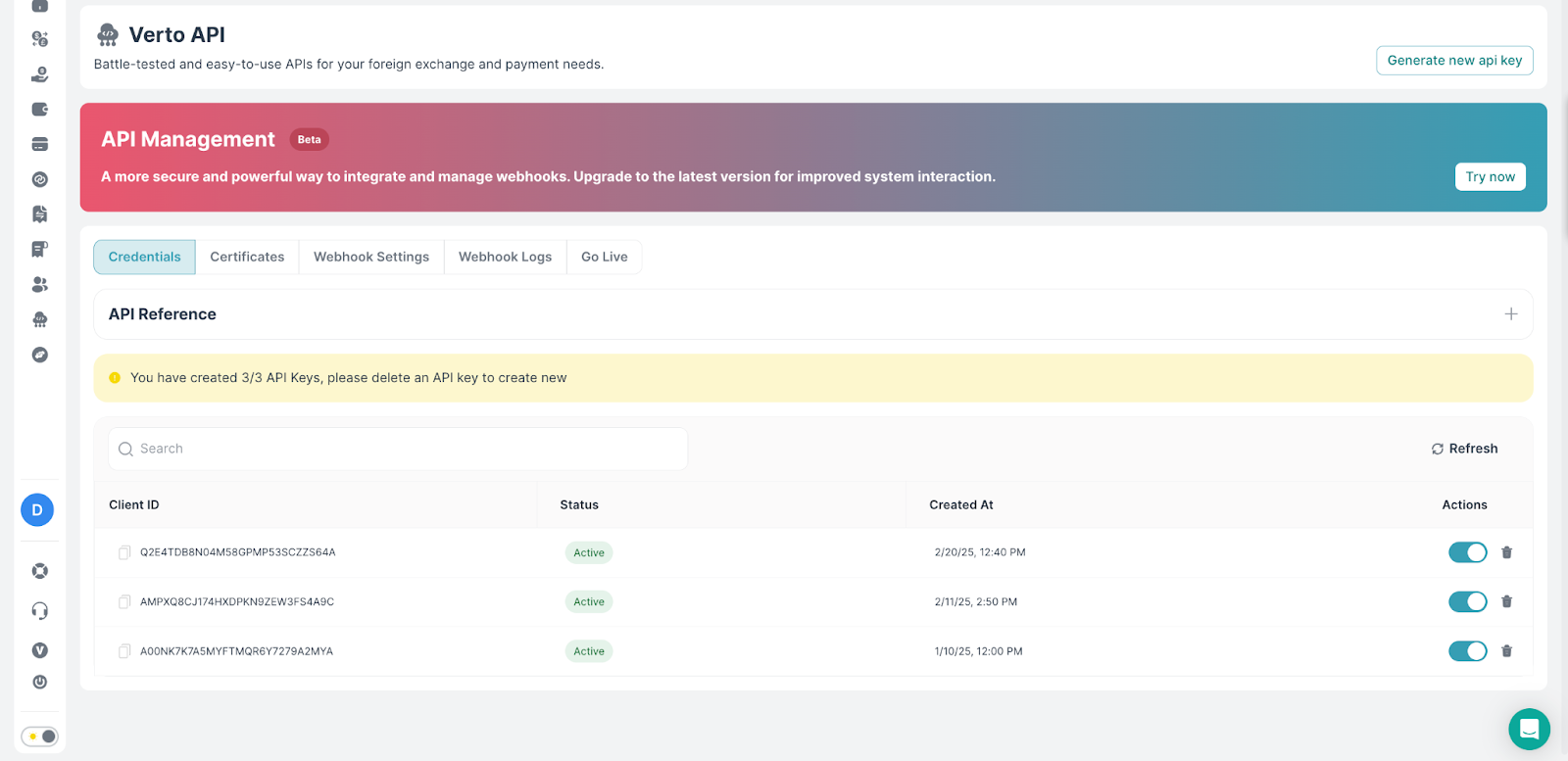
Once you log into the Verto platform, click on ‘Verto API’ on the sidebar to go to the API section.
Proceed to Webhook Beta
On the API page, click on the try now button on the ‘API management’ card to proceed to webhook subscriptions.
Proceed to Add a Subscription
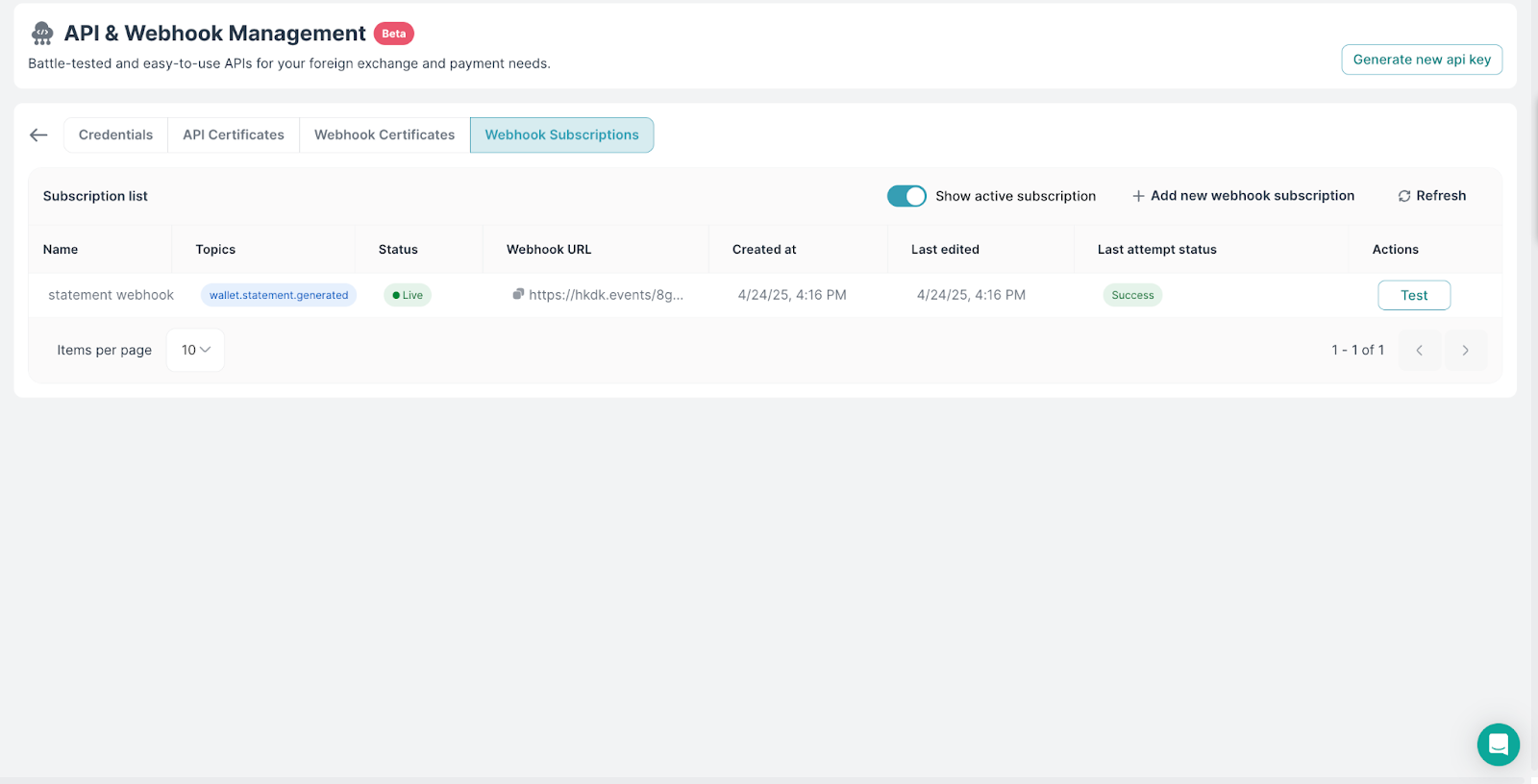
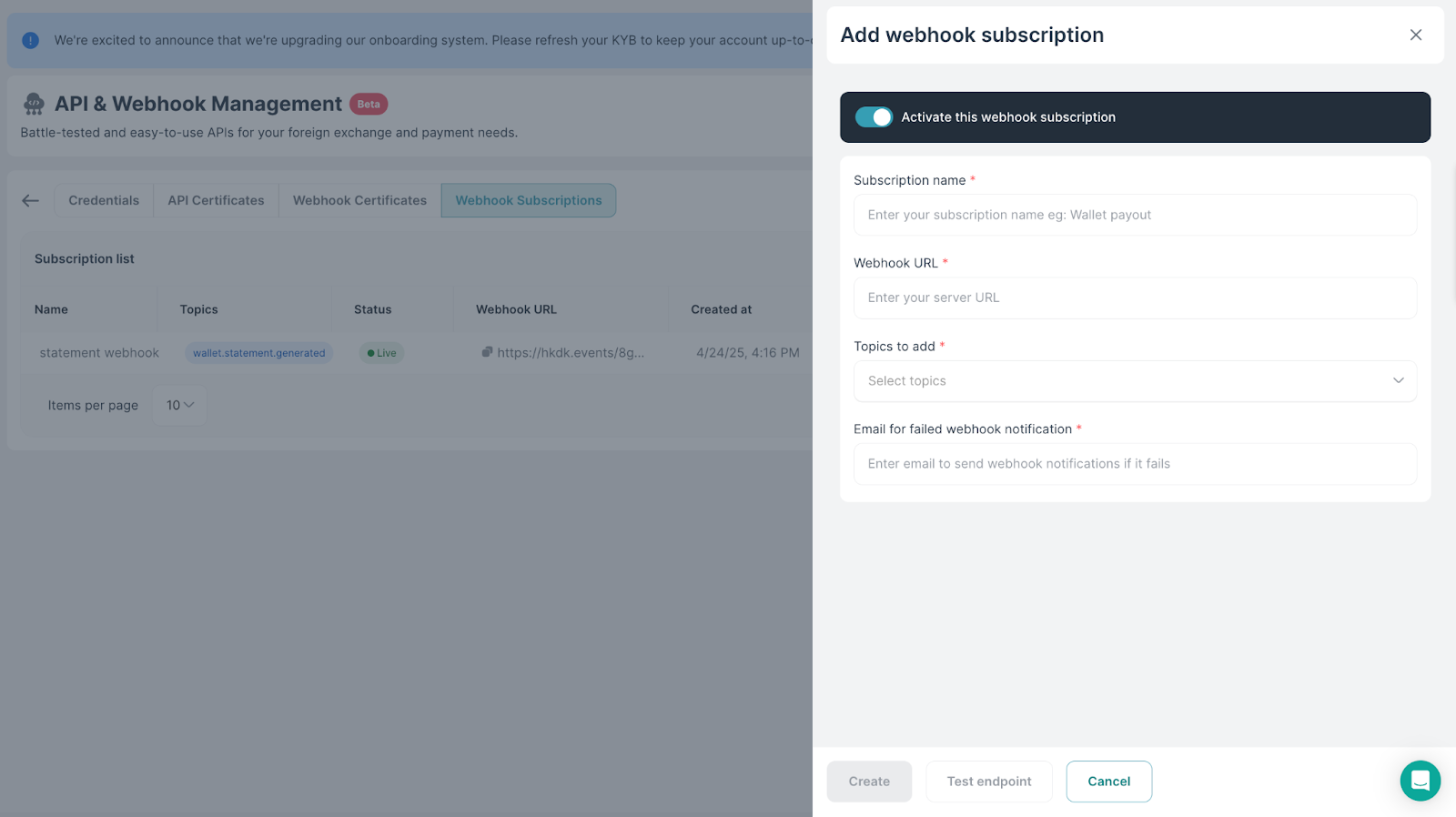
Click on the ‘add new webhook subscription’ to set up a subscription. You will then proceed to add:
- Subscription name: The name of the subscription to help you easily identify your subscriptions.
- Webhook URL: The URL you want to receive the events.
- Topics to add: The actions you want to listen for. You can add more than one event per subscription.
- Email for failed webhook notification: The email that will be notified for every failed webhook notification.
Once all the details are added, you can proceed to test whether your webhook url is receiving events successfully using the test endpoint button at the end of the form.
N.B: Remember to activate the subscription at the beginning of the form.
View Events for Your Subscription
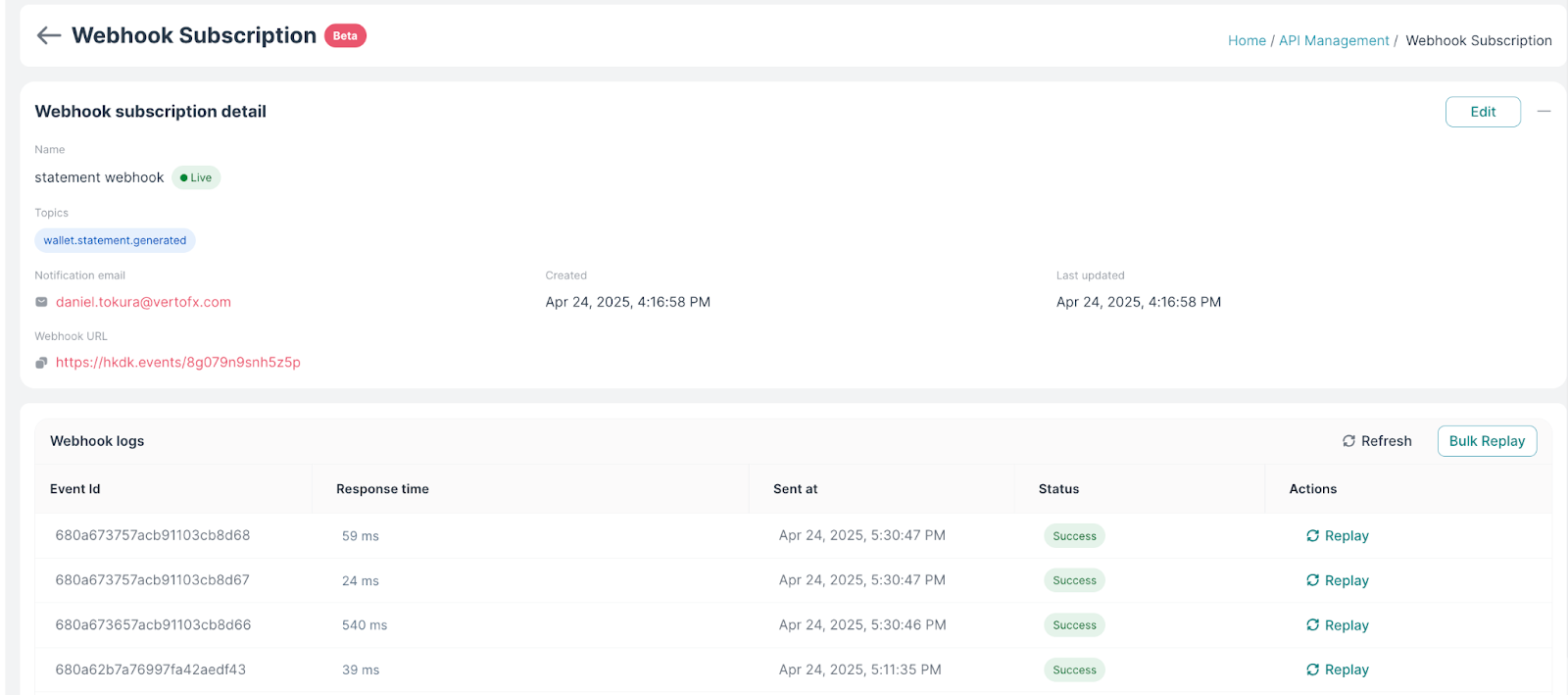
Once you have started receiving events, you can view them by clicking into the subscription. Additionally, you can also replay previously sent events that you missed.
Updated 7 months ago